Showing posts with label Webcenter Content. Show all posts
Showing posts with label Webcenter Content. Show all posts
Update WCC UI connection details using WLST commands.
OS Version : Windows 10
WCC Version : 12.2.1.3.0
1. Open command prompt and go to <MW_Home>\Oracle_Home\oracle_common\common\bin
eg: C:\cd C:\xxxxxxx\Middleware\Oracle_Home\oracle_common\common\bin
2. Set the WL_HOME environment variable
eg: set WL_HOME=<MW_Home>\Oracle_Home\wlserver
3. Execute 'wlst' command.
4. Connect WCC UI server instance using connect command.
eg: connect('weblogic','<Password>','t3://localhost:16225')
5. Execute listRIDCConnections to view RIDC connection information.
Eg: listRIDCConnections('Oracle WebCenter Content - Web UI')
6. Execute updateRIDCConnection to update RIDC connection details.
Eg: updateRIDCConnection('Oracle WebCenter Content - Web UI','WccAdfServerConnection',connUrl='idc://localhost:4444',credUsername='weblogic')
7. Execute exit command to exit from WLST mode
Eg: exit()
Try here to update WCC UI connection details from EM console.


"System failure occurred. Contact your site administrator." error message after WCC domain configuration.
WCC Version: 12.2.1.3.0
OS : Windows 10
Error Message: System failure occurred. Contact your site administrator.

Check whether WCC server is up and running, if not start WCC server instance. If WCC server is running, please follow below steps.
1. Open EM console and navigate to Application Deployments --> Oracle WebCenter Content - Web UI
2. Right click and select 'System MBean Browser'.
3. Search 'WccAdfServerConnection' Mbean name in search area (Make sure that WCC UI server instance is up and running).
For eg:
Application Defined MBeans --> oracle.adf.share.connections --> Server: WCCADF_server1 --> Application: Oracle WebCenter Content - Web UI --> ADFConnections --> WccConnection
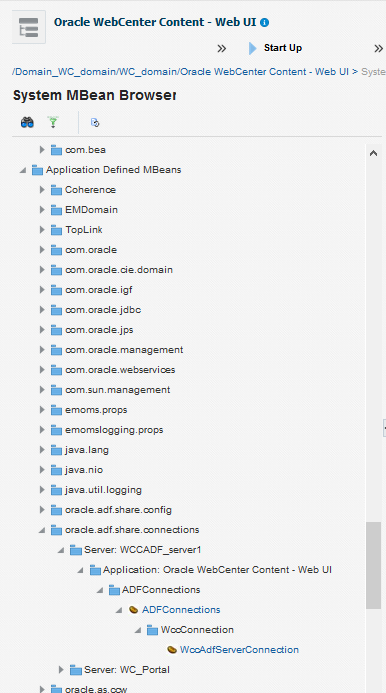

4. Update below attribute values.
PropConnectionUrl : idc://localhost:4444
PropCredentialUsername : weblogic
PropCredentialPassword : <Password>
5. Click on ADFConnections (Parent node) --> Operations --> Save.

6. Click on right top invoke button.
7. Restart WCC UI server instance.
Try here to update WCC UI connection details using weblogic scripting commands.
Subscribe to:
Posts (Atom)